krishworkstech.com

Part 10.1: Advanced TestNG Features in Appium Framework

Part 10.1 : Advanced TestNG Features in Appium Framework

Now that we’ve seen how to create and run basic Appium tests using TestNG, let’s move into advanced integration. These concepts are especially useful when you’re building a real-world automation framework for mobile apps.

COVER 10.1
10.1

1. Enhancing TestNG with Listeners (for Appium)

What are Listeners?

Listeners in TestNG are interfaces that allow you to listen to events during the test execution lifecycle and take actions — for example:

  • Taking screenshots when a test fails

  • Logging test start and end times

  • Generating custom reports

  • Retrying failed tests automatically

Commonly Used Listener Interfaces:

Listener Interface

Purpose

ITestListener

Respond to test-level events (start, fail)

ISuiteListener

Respond to suite-level events

IInvokedMethodListener

Before/after method execution

IRetryAnalyzer

Retry failed tests

Example: Capture Screenshot on Test Failure

Step 1: Create a Listener Class

				
					import org.testng.ITestListener;
import org.testng.ITestResult;
import org.openqa.selenium.OutputType;
import org.openqa.selenium.TakesScreenshot;
import java.io.File;
import java.nio.file.Files;

public class TestListener implements ITestListener {

    @Override
    public void onTestFailure(ITestResult result) {
        Object testClass = result.getInstance();
        AppiumDriver driver = ((BaseTest) testClass).getDriver();

        File srcFile = ((TakesScreenshot) driver).getScreenshotAs(OutputType.FILE);
        try {
            Files.copy(srcFile.toPath(), new File("screenshots/" + result.getName() + ".png").toPath());
        } catch (Exception e) {
            e.printStackTrace();
        }
    }
}


Step 2: Register the Listener in Your Test Class or testng.xml

Option A – In test class:

				
					@Listeners(TestListener.class)
public class LoginTest {
    // test methods
}


Option B – In testng.xml:

				
					<listeners>
    <listener class-name="com.yourproject.listeners.TestListener"/>
</listeners>


Note: You must have a getDriver() method in your base test class that returns the AppiumDriver object.

2. Retry Failed Tests Automatically

Sometimes tests fail due to temporary issues like network delay or element timing. You can set up TestNG to automatically retry failed tests.

Step 1: Create a Retry Analyzer

				
					import org.testng.IRetryAnalyzer;
import org.testng.ITestResult;

public class RetryAnalyzer implements IRetryAnalyzer {
    private int attempt = 1;
    private final int maxRetry = 2;

    public boolean retry(ITestResult result) {
        if (attempt < maxRetry) {
            attempt++;
            return true;
        }
        return false;
    }
}


Step 2: Use in Your Test Class

				
					@Test(retryAnalyzer = RetryAnalyzer.class)
public void unstableTest() {
    // test logic
}


You can also configure it globally using listeners and annotation transformers if needed.

3. TestNG Reports and Logging

TestNG provides basic reports by default (HTML and XML). You can find them in the test-output folder after running the suite.

However, for better reporting, you might want to integrate tools like:

  • ExtentReports – For rich HTML reports with screenshots and logs
  • Allure Reports – A powerful open-source reporting framework

Let me know if you’d like a walkthrough for integrating ExtentReports with Appium and TestNG.

4. Running Tests on Multiple Devices (Parallel Execution)

Let’s expand on the earlier parallel testing setup using TestNG parameters and testng.xml.

Step 1: Define Parameters in testng.xml

				
					<suite name="ParallelSuite" parallel="tests" thread-count="2">
    <test name="Device1">
        <parameter name="udid" value="emulator-5554"/>
        <parameter name="systemPort" value="8200"/>
        <classes>
            <class name="com.yourproject.tests.LoginTest"/>
        </classes>
    </test>
    <test name="Device2">
        <parameter name="udid" value="emulator-5556"/>
        <parameter name="systemPort" value="8201"/>
        <classes>
            <class name="com.yourproject.tests.LoginTest"/>
        </classes>
    </test>
</suite>


Step 2: Read Parameters in Base Setup

				
					@Parameters({"udid", "systemPort"})
@BeforeClass
public void setUp(String udid, String systemPort) throws MalformedURLException {
UiAutomator2Options options = new UiAutomator2Options()
            .setUdid(udid)
            .setSystemPort(Integer.parseInt(systemPort));
            // Add other capabilities as needed

        driver = new AndroidDriver(new URL("http://127.0.0.1:4723/wd/hub"), options);
    }


    driver = new AndroidDriver<>(new URL("http://127.0.0.1:4723/wd/hub"), caps);
}


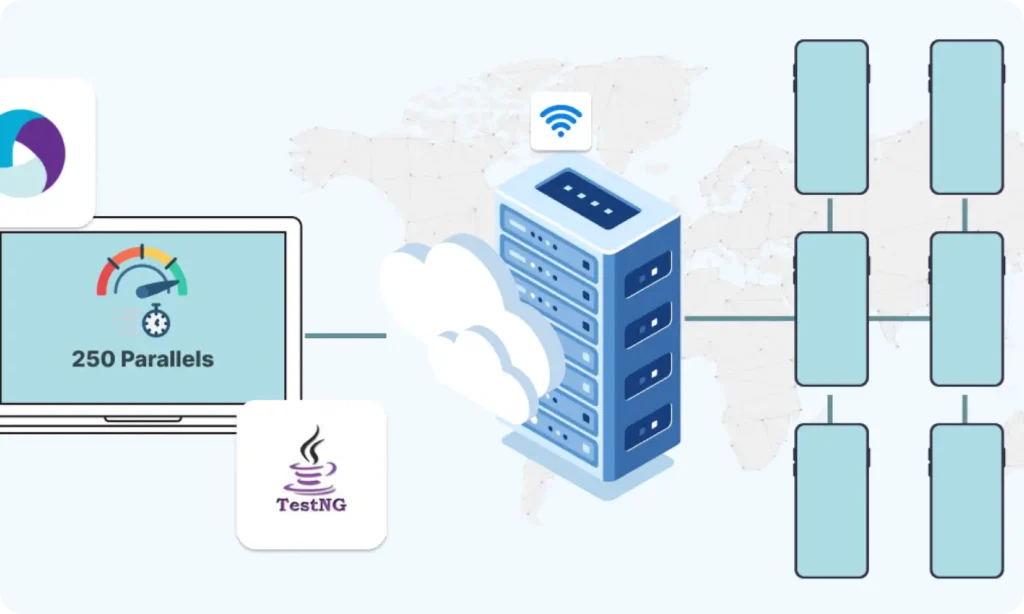
This setup allows you to run the same test class across multiple devices/emulators simultaneously by specifying different UDIDs and Appium ports/system ports 

5. Integration with CI/CD (Preview)

While this will be covered in detail in a later session, here’s what you need to know now:

  • TestNG + Appium + Maven makes it easy to integrate with Jenkins or any CI server
  • You can run TestNG suites via command line:
  • mvn test -DsuiteXmlFile=testng.xml
  • These executions can be triggered by Jenkins pipelines, GitHub Actions, GitLab CI, etc.
  • In later sessions, we will cover:
    Setting up Jenkins jobs
  • Generating reports post-build
  • Sending email or Slack alerts for failed test runs

Summary of Advanced Features

Feature

Purpose

Listeners

Take action on test events (e.g., screenshot)

Retry Analyzer

Re-run flaky tests automatically

Parallel Execution

Run tests on multiple devices/emulators

Parameters in XML

Pass device-specific data to tests

CI/CD Ready

Easily executable via CLI and CI pipelines

Building complex IoT systems?

Accelerate testing and deployment with our QEMU-integrated toolchain expertise.

Mastering Appium: A Complete Beginner-to-Expert Mobile Automation Guide

image (5) (1)
COVER 3

Part 2 : Appium Architecture, Tools Setup & How Test Code Connects to Devices

COVER - PART 4

Part 3 : Java Fundamentals for Test Automation

Group 1707478330
COVER 3

Part 5 : Setting Up the Environment (Windows & macOS)

Group 1707478196 (1) (1)

Part 6 : Understanding UiAutomator2 (Android Engine)

Group 1707478196 (1)
COVER 3

Part 8 : Handling Waits and Synchronization in Appium (Android)

COVER - PART 4

Part 9 : Element Locator Strategies in Android (ID, XPath, etc.)

COVER 3 (2) (1)
COVER 3 (2)
COVER 3 (3)

Part 11 : Page Object Model (POM) Design in Appium (Android)

COVER 3
COVER 3 (2)
COVER 3 (3)

Part 11: Page Object Model (POM) Design in Appium (Android)

Scroll to Top
  • Schematic design
  • PCB and schematic source files
  • Assembling drawing files
  • Providing prototype/sample and production PCB service
  • Testing and validation of designed hardware
  • HIPAA
  • Azure Key
  • Management
  • ES, Checksum,
  • MD5sum
  • AWS
  • Azure
  • GCP
  • DigitalOcean
  • Kotlin
  • Python
  • Tensorflow
  • Computer Vision
  • ECG
  • SPO2
  • Heart Rate
  • Glucometer
  • Blood Pressure
  • UX UI Process
  • Figma and FigJam
  • Adobe Suite
  • Selenium Java
  • Postman
  • Swagger
  • Jmeter
  • SQL
  • Java Scripter
  • Test ng
  • Extents Reports
  • Flutter
  • Java
  • Kotlin
  • Swift
  • Dart
  • React JS
  • Python
  • NodeJS
  • Django
  • HTML, CSS, JS
RDBMS
  • PostgreSQL
  • Oracle
  • MySQL
  • MariaDB
No SQL Based
  • MongoDB
  • GCP
  • FirestoreDB
  • DynamoDB
  • Azure
  • CosmosDB
  • AWS