


Introduction
Locators serve as the fundamental component of Playwright’s automatic waiting and retry functionality. In essence, locators provide a method to identify element(s) on the page at any given time.
These are the suggested built-in locators.
- page.getByRole() to locate by explicit and implicit accessibility attributes.
- page.getByText() to locate by text content.
- page.getByLabel() to locate a form control by associated label’s text.
- page.getByPlaceholder() to locate an input by placeholder.
- page.getByAltText() to locate an element, usually image, by its text alternative.
- page.getByTitle() to locate an element by its title attribute.
- page.getByTestId() to locate an element based on its data-testid attribute (other attributes can be configured).
					// code snippet:
await page.getByLabel('User Name').fill('John');

await page.getByLabel('Password').fill('secret-password');

await page.getByRole('button', { name: 'Sign in' }).click();

await expect(page.getByText('Welcome, John!')).toBeVisible();

Locating elements
Playwright includes several built-in locators. To enhance the resilience of tests, we advise focusing on user-facing attributes and explicit contracts, such as page.getByRole().
For instance, examine the following DOM structure.

					// code snippet:
await page.getByRole('button', { name: 'Sign in' }).click();
Locate the element by its role of button with name “Sign in”.
					// code snippet:
await page.getByRole('button', { name: 'Sign in' }).click();
Each time a locator is employed for an action, a current DOM element is identified on the page. In the following snippet, the relevant DOM element will be identified two times, once before each action. This indicates that if the DOM is altered between the calls due to re-rendering, the new element associated with the locator will be utilized.
					// code snippet:
const locator = page.getByRole('button', { name: 'Sign in' });

await locator.hover();
await locator.click();
Please be aware that all methods designed to generate a locator, including page.getByLabel(), are also accessible within the Locator and FrameLocator classes. This allows for chaining and progressively refining your locator.
					// code snippet:
const locator = page
    .frameLocator('#my-frame')
    .getByRole('button', { name: 'Sign in' });

await locator.click();
Locate by role
The page.getByRole() locator represents the way users and assistive technologies interpret the page, indicating whether a specific element functions as a button or a checkbox. When utilizing role-based location, it is generally advisable to also provide the accessible name, ensuring that the locator identifies the precise element.
For instance, take into account the subsequent DOM structure.
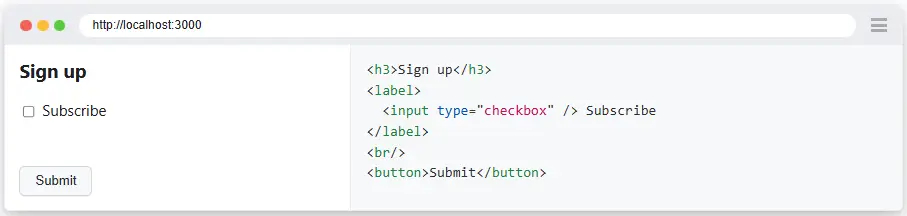
You can locate each element by its implicit role:
					// code snippet:
await expect(page.getByRole('heading', { name: 'Sign up' })).toBeVisible();
await page.getByRole('checkbox', { name: 'Subscribe' }).check();
await page.getByRole('button', { name: /submit/i }).click();
Role locators encompass buttons, checkboxes, headings, links, lists, tables, and various other elements, adhering to W3C specifications for ARIA roles, ARIA attributes, and accessible names. It is important to note that numerous HTML elements, such as <button>, possess an implicitly defined role that is acknowledged by the role locator.
It should be emphasized that role locators do not serve as substitutes for accessibility audits and conformance tests; instead, they provide preliminary feedback regarding the ARIA guidelines.
Locate by label
Typically, form controls are equipped with specific labels that can be easily utilized for interaction with the form. In this instance, you can identify the control by its corresponding label through the use of page.getByLabel().
For instance, examine the subsequent DOM structure.

You can fill the input after locating it by the label text:
					// code snippet:
await page.getByLabel('Password').fill('secret');
When to utilize label locators
Employ this locator for identifying form fields.
Locate by placeholder
Inputs may include a placeholder attribute to suggest to the user what value is expected to be entered. You can find such an input by using page.getByPlaceholder().
For instance, examine the following DOM structure.

You can fill the input after locating it by the placeholder text:
					// code snippet:
await page
    .getByPlaceholder('name@example.com')
    .fill('playwright@microsoft.com');
When to utilize placeholder locators
Employ this locator for identifying form elements that lack labels yet possess placeholder texts.
Locate by text
Locate an element based on the text it includes. You can match using a substring, an exact string, or a regular expression when utilizing page.getByText().
For instance, examine the subsequent DOM structure.

You can locate the element by the text it contains:
					// code snippet:
await expect(page.getByText('Welcome, John')).toBeVisible();
Set an exact match:
					// code snippet:
await expect(page.getByText('Welcome, John', { exact: true })).toBeVisible();
Match with a regular expression:
					// code snippet:
await expect(page.getByText(/welcome, [A-Za-z]+$/i)).toBeVisible();
Note :
Matching by text consistently normalizes whitespace, even in the case of an exact match. For instance, it converts multiple spaces into a single space, transforms line breaks into spaces, and disregards any leading or trailing whitespace.
When to utilize text locators
We advise employing text locators to identify non-interactive elements such as div, span, p, etc. For interactive elements like button, a, input, etc., it is recommended to use role locators.
Locate by alt text
All images should have an alt attribute that describes the image. You can locate an image based on the text alternative using page.getByAltText().
For example, consider the following DOM structure.

You can click on the image after locating it by the text alternative:
					// code snippet:
await page.getByAltText('playwright logo').click();
When to utilize alternative locators
Employ this locator when your element is compatible with alternative text, such as img and area elements.
Locate by title
Identify an element that has a corresponding title attribute by utilizing page.getByTitle().
For instance, take into account the subsequent DOM structure.

You can check the issues count after locating it by the title text:
					// code snippet:
await expect(page.getByTitle('Issues count')).toHaveText('25 issues');
When to utilize title locators
Employ this locator when your element possesses the title attribute.
Locate by test id
Testing using test IDs is the most robust method of testing, as the test will continue to succeed even if the text or the role of the attribute is altered. Quality Assurance professionals and developers should establish clear test IDs and retrieve them using page.getByTestId(). However, testing by test IDs does not reflect the user interface. If the role or text value holds significance for you, it is advisable to utilize user-facing locators, such as role and text locators.
For instance, take into account the following DOM structure.

You can locate the element by its test id:
					// code snippet:
await page.getByTestId('directions').click();
When to utilize testid locators
You may also employ test ids when opting for the test id methodology or when you are unable to locate by role or text.
Filtering Locators
Please examine the subsequent DOM structure in which we aim to click the buy button of the second product card. We have several alternatives available to refine the locators to identify the correct one.
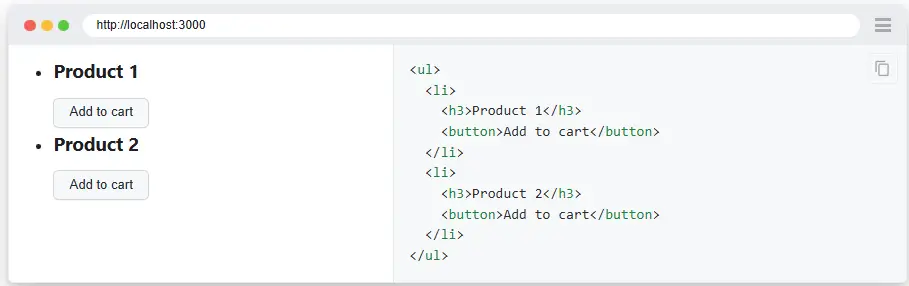
Filter by text
Locators may be filtered by text using the locator.filter() method. This method will search for a specific string within the element, potentially within a descendant element, without regard to case. Additionally, a regular expression can also be provided.
					// code snippet:
await page
    .getByRole('listitem')
    .filter({ hasText: 'Product 2' })
    .getByRole('button', { name: 'Add to cart' })
    .click();
Chaining filters
When you possess elements that share different similarities, the locator.filter() method can be employed to identify the appropriate one. Additionally, you have the option to chain several filters to refine the selection.
For instance, take into account the subsequent DOM structure:
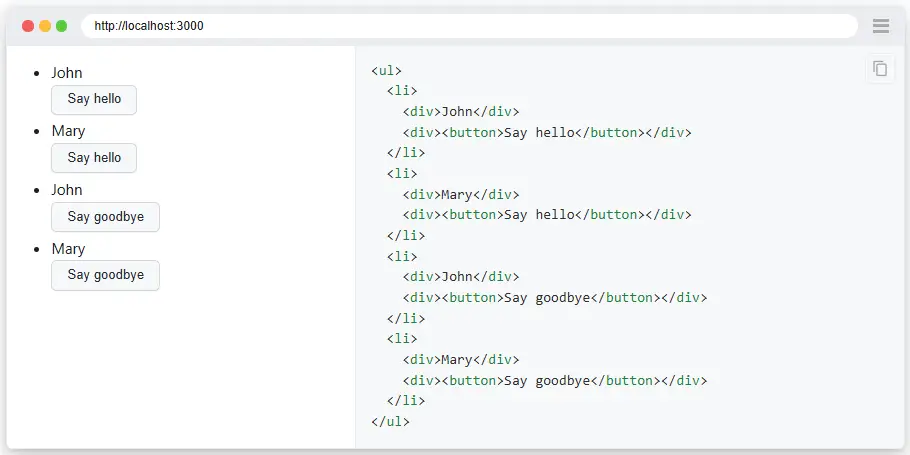
To take a screenshot of the row with “Mary” and “Say goodbye”
					// code snippet:
const rowLocator = page.getByRole('listitem');
await rowLocator
    .filter({ hasText: 'Mary' })
    .filter({ has: page.getByRole('button', { name: 'Say goodbye' }) })
    .screenshot({ path: 'screenshot.png' });
Playwright Essentials: A Step-by-Step Journey into Test Automation

Part 01: Master Playwright Testing – Framework from Scratch Guide

Part 02: How to install Playwright

Part 03: Basic Playwright Test Structure

Part 04: Importance of Playwright configuration file and its details to run the tests

Part 05: Writing Tests in PlayWright

Part 06: Playwright Actions Illustrated
Part 07: Auto-waiting
Part 08: Handling the Dialogs

Part 09: Download & Handling frames

Part 10: Locators
Part 11: Pages & New Window



 Hardware/PCB design & addon services


