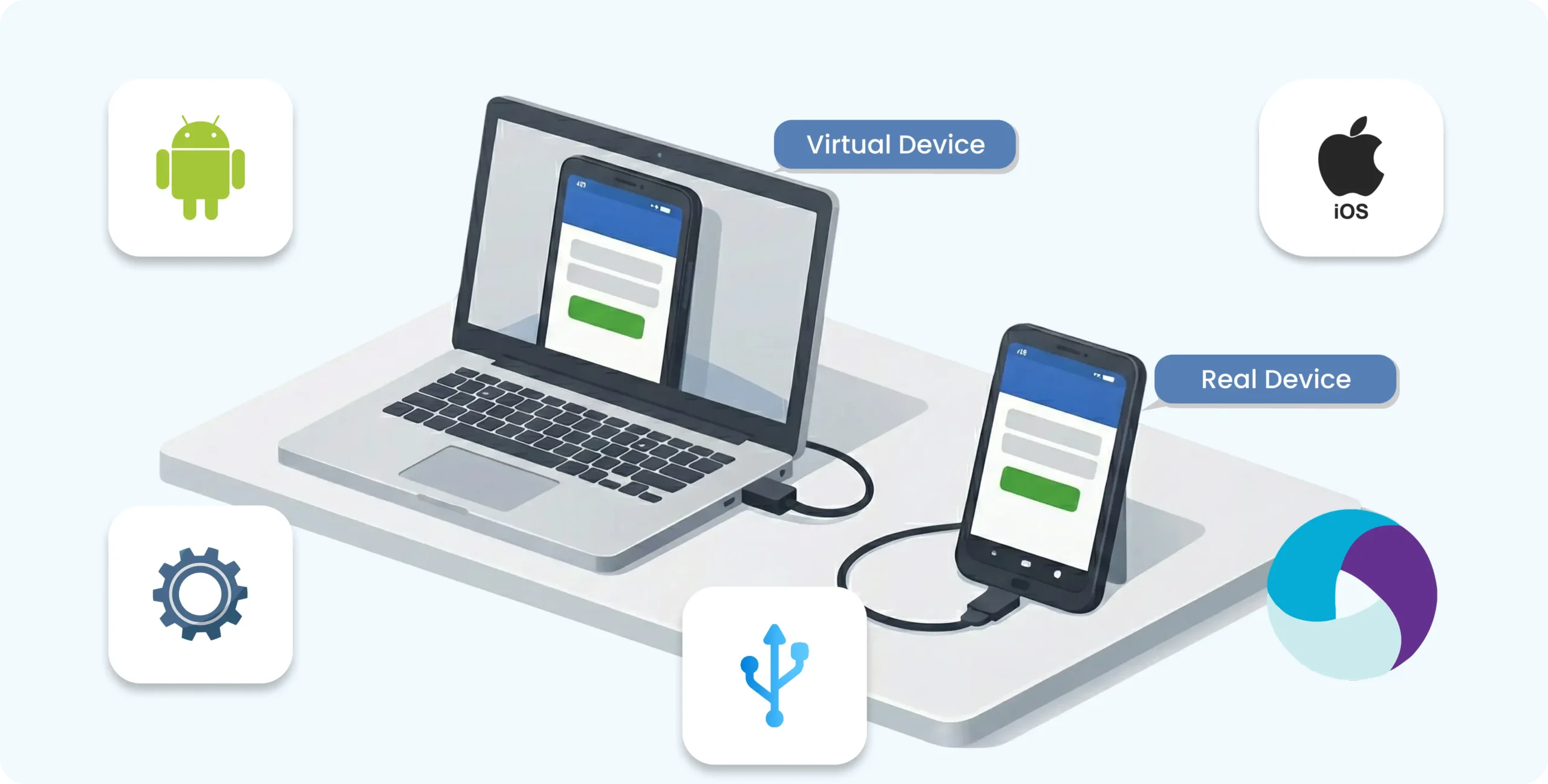
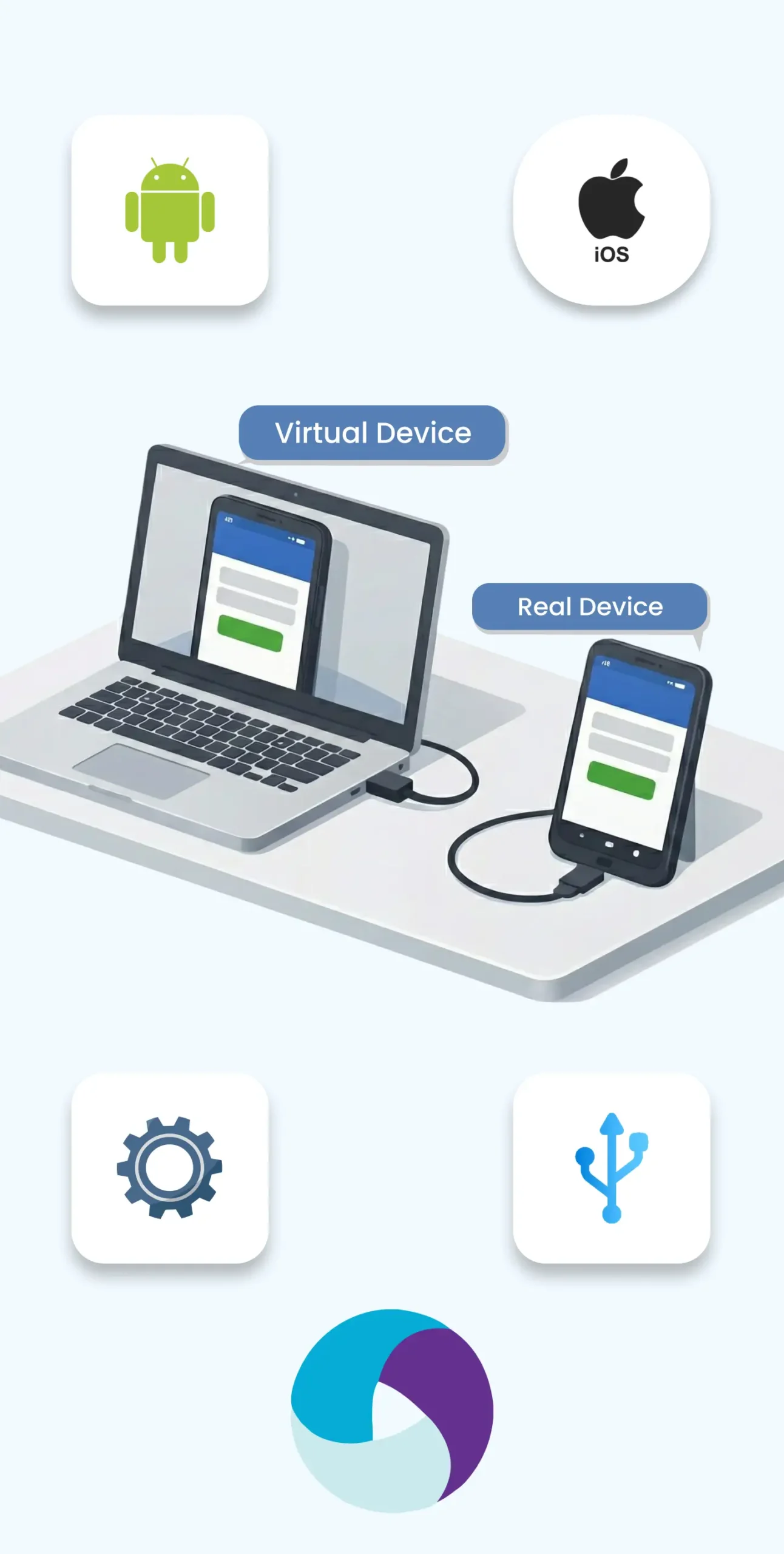
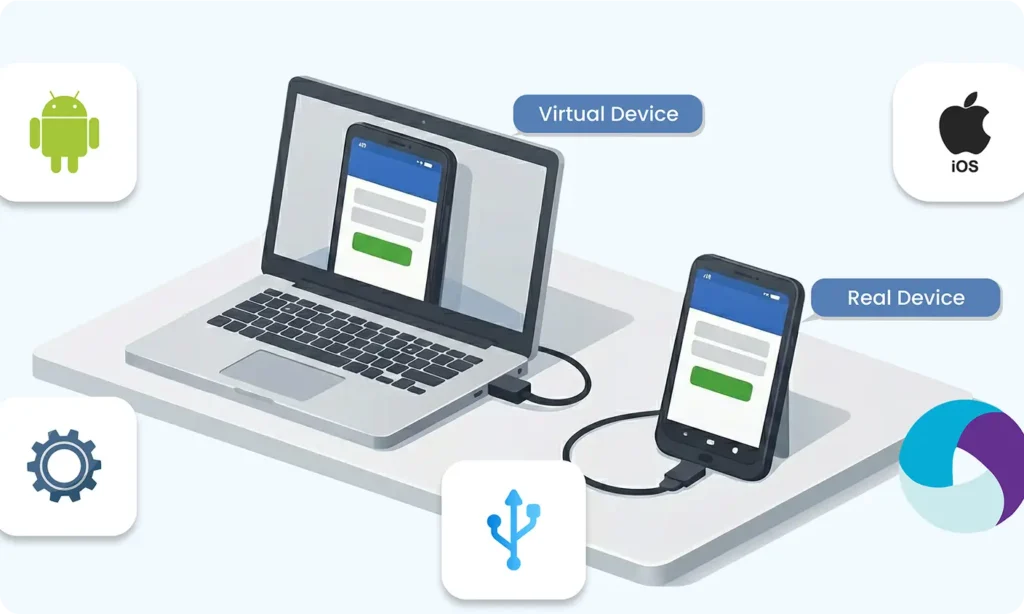
Part 13 : Real Devices vs Virtual Devices When we build an Android app, we must test it to see if it works properly. For testing, we can use two types of devices :Virtual devices (Emulator)Real physical Android phonesBoth are useful, usually we use both. Table of Contents Setting Up the Android Emulator (Virtual Device)Connecting a Real Android Phone Using USBTips for Testing on Physical DevicesCommon Device Setup Errors (and Simple Fixes)Emulator vs Real Device (Simple Comparison) Share at: Setting Up the Android Emulator (Virtual Device) An Android Emulator is a virtual phone that runs on your computer. It behaves like a real Android device. How to set it up :Open Android StudioGo to Device ManagerClick on Create DeviceChoose a phone model (for example, Pixel)Select an Android version (system image)Download it if neededClick Finish and start the emulator Why we use the emulator : No need for a real phoneEasy to test different Android versionsGood for learning and early development Problems with emulator : Can be slow on some computersHardware features like camera or sensors are not fully real Connecting a Real Android Phone Using USB Testing on a real phone helps you see how your app works in real life. Steps to connect your phone: Open Settings on your phoneGo to About PhoneTap Build Number 7 times to enable Developer OptionsGo back to Settings → Developer OptionsTurn on USB DebuggingConnect the phone to your computer using a USB cableAllow the permission message on your phoneNow your phone will appear in Android Studio and you can run your app on it. Why real devices are important : Shows real performance and speedTests real hardware like camera, GPS, and sensorsHelps find real-world problems Tips for Testing on Physical Devices When testing your app on a real phone, always:Rotate the phone (portrait and landscape)Test touch actions and buttonsCheck performance (slow or smooth)Test with low batteryLock and unlock the phone during testingMake sure the app doesn’t crash Common Device Setup Errors (and Simple Fixes) Phone not showing in Android Studio Check if USB debugging is ONUse a proper USB data cableTry another USB port Authorization problem Reconnect the phoneAccept the permission popup on the phoneTurn USB debugging OFF and ON again Emulator running slowly Enable virtualization in BIOSIncrease RAM for emulatorClose other heavy apps App installs but doesn’t open Check errors in LogcatMake sure correct device is selectedCheck minimum Android version Emulator vs Real Device (Simple Comparison) Feature Emulator Real Device Easy to use Yes Medium Speed accuracy Medium High Hardware testing Limited Full Best for Practice & learning Final testing Building complex IoT systems? Accelerate testing and deployment with our QEMU-integrated toolchain expertise. Contact us now Mastering Appium: A Complete Beginner-to-Expert Mobile Automation Guide Part 1 : Introduction to Mobile Automation and Appium Part 2 : Appium Architecture, Tools Setup & How Test Code Connects to Devices Part 3 : Java Fundamentals for Test Automation Part 4 : Next Steps: Level Up Before Real Appium Scripting Part 5 : Setting Up the Environment (Windows & macOS) Part 6 : Understanding UiAutomator2 (Android Engine) Part 7 : First Appium Test Script (Android) Part 8 : Handling Waits and Synchronization in Appium (Android) Part 9 : Element Locator Strategies in Android (ID, XPath, etc.) Part 10 : TestNG Integration for Test Execution Part 10.1 : Advanced TestNG Features in Appium Framework Part 11 : Page Object Model (POM) Design in Appium (Android) Part 12 : Logging with Log4j & Reporting with Extent Reports (Appium - Android) Part 13 : Real Devices vs Virtual Devices Part 14 : iOS Automation Basics (XCUITest)














 Hardware/PCB design & addon services


